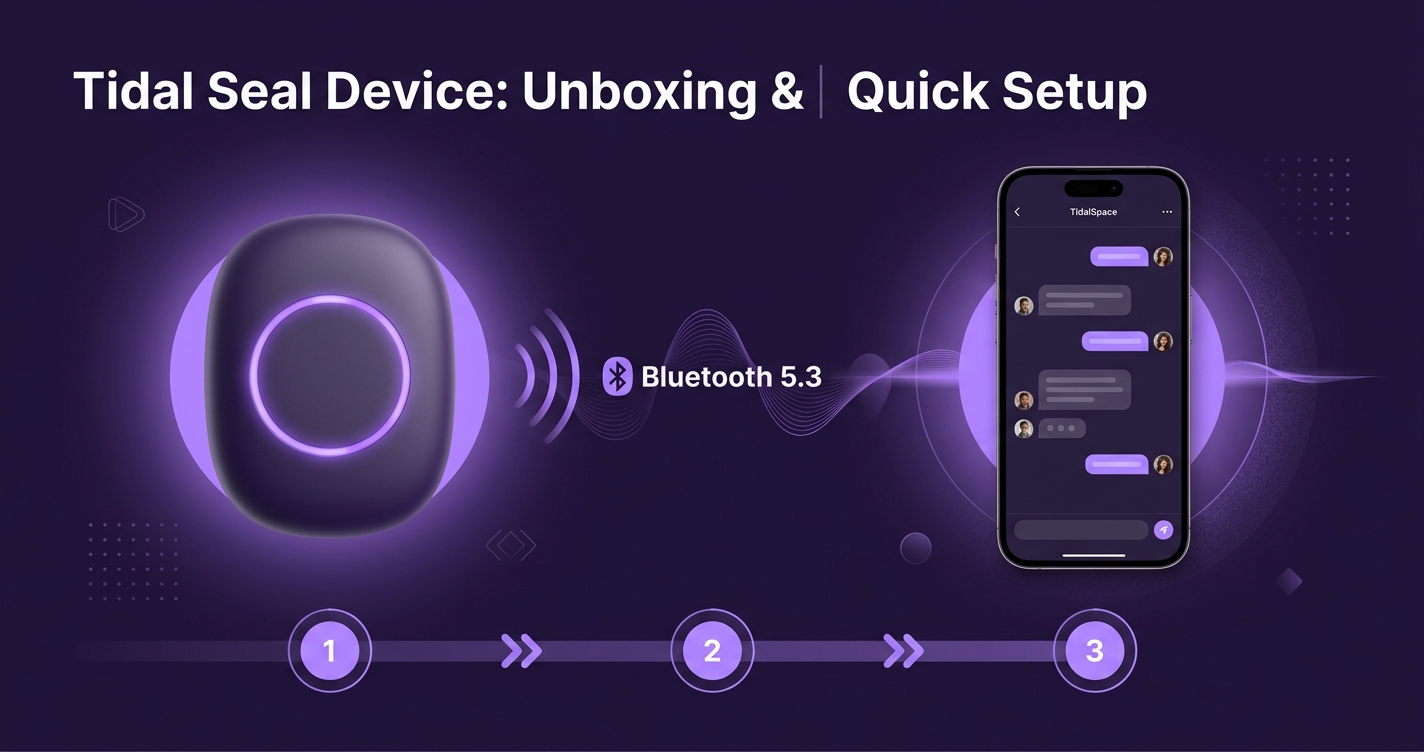
The Tidal Seal setup process is designed to be fast: open the box, press one button, and your AI character is talking to you in under 90 seconds. This guide covers every step — including what to do if pairing doesn't go smoothly the first time.
What's in the box
Before you start, verify the box contains everything:
| Item | Quantity | Notes |
|---|---|---|
| Tidal Seal device | 1 | Ships with ~60% charge |
| USB-C charging cable | 1 | 30 cm braided; use your own adapter (5V/1A min) |
| Quick-start card | 1 | QR code links directly to TidalSpace app |
| Warranty documentation | 1 | 12-month limited hardware warranty, Ohayo LLC |
If anything is missing, contact support via the TidalSpace app before powering on.
Step-by-step: the 90-second setup
These steps assume you don't have the TidalSpace app installed yet. If you already have the app, skip directly to step 3.
- Download the TidalSpace app. Scan the QR code on the quick-start card, or search "TidalSpace" on the App Store or Google Play. Install takes about 30–45 seconds on a typical connection.
- Create or log in to your account. New accounts require only an email address. No phone number needed. Your first AI character is automatically created during onboarding.
- Power on Tidal Seal. Hold the single button on the bottom of the device for 2 seconds until the ambient light pulses slowly in white. This means it's in pairing mode.
- Open the app and tap "Connect Device." Found in Settings → Device. The app will scan for nearby BLE 5.3 devices automatically.
- Confirm the pairing prompt. Both the app and the device will show a confirmation signal — the device's light turns blue. Tap "Pair" in the app.
- Say hello. The device activates always-listening mode. Speak normally — your AI character will respond through your phone's speaker (or headphones) within 300–500ms of you finishing your sentence.
"The first time I heard my character respond through Tidal Seal, it felt like someone was actually in the room. The latency is low enough that it doesn't feel like a smart speaker." — TidalSpace beta tester, March 2026
Understanding the light signals
Tidal Seal communicates its state through the ambient presence light. Learning these patterns saves you from guessing what's happening:
| Light pattern | What it means |
|---|---|
| Slow pulse, white | Pairing mode / waiting for connection |
| Solid blue | Paired and connected to app |
| Pulsing blue | Listening — your character is ready to hear you |
| Breathing pink/rose | Your character is speaking or processing |
| Slow pulse, amber | Battery below 20%; charge soon |
| Off | Powered off or battery depleted |
Placing your Tidal Seal
Because Tidal Seal uses BLE 5.3 rather than Wi-Fi, placement matters less than you might think. The effective range is up to 10 metres in open air, and walls reduce this to roughly 5–7 metres depending on material. A few practical recommendations:
- Desk or nightstand: keeps the always-listening microphone at a natural speaking distance (30–60 cm is ideal).
- Avoid strong RF interference: placing directly next to a Wi-Fi 6E router or microwave can occasionally cause brief audio dropout. Move 30 cm away if you notice this.
- Keep phone within 5 metres during voice conversations for lowest latency. The connection will maintain beyond that, but round-trip audio may degrade slightly.
Customizing your AI character
After pairing, you can shape your character's name, personality baseline, and voice in the TidalSpace app under Character → Edit. Three settings matter most for the physical experience:
- Voice selection: Choose from 12 available voices. Voices labeled "Warm" and "Low" tend to sound more natural through the device's microphone pickup.
- Listening sensitivity: Default is "Medium." In quiet rooms, try "High." In loud environments like kitchens or open offices, drop to "Low" to reduce false triggers.
- Ambient light mode: "Breathe" (default) pulses with character activity. "Glow" keeps a steady color. "Off" disables the light for sleep environments.
Troubleshooting common setup issues
Most setup failures fall into three categories:
- App doesn’t find the device: Make sure Bluetooth is enabled on your phone and location permissions are granted for the TidalSpace app. BLE device scanning requires location access on both iOS and Android.
- Pairing fails repeatedly: Hold the device button for 8 seconds to reset BLE pairing memory, then re-enter pairing mode (2-second press). If your phone previously paired and then unpaired, it may hold a stale connection record — remove it in your phone’s Bluetooth settings first.
- No audio from conversations: By default, audio plays through your phone’s speaker. Check that Do Not Disturb is not muting app audio, and that the TidalSpace app has microphone permission granted. For detailed battery tips once setup is complete, see our Tidal Seal battery & charging guide.
Ready to meet your AI companion in the physical world?
Download TidalSpace free. Tidal Seal ships in 2026.
Get TidalSpace →